
Free
$0Free plan available.
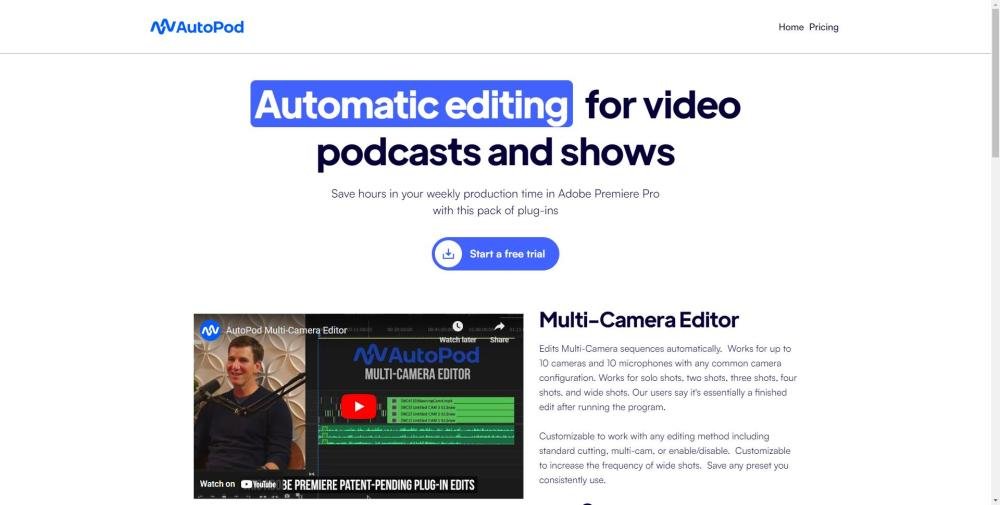
AutoPod is a set of Adobe Premiere Pro plug-ins designed for video podcast and video show editors. It automates tasks such as multi-camera editing, social clip creation, and jump cut editing based on silence. AutoPod helps save time in weekly production by automating processes editors often find tedious.
Install the AutoPod plug-in for Adobe Premiere Pro. Open a project file in Premiere Pro, navigate to Window > Extensions, and select the desired AutoPod app. Use the tools to automate multi-camera editing, generate social clips, or apply jump cuts based on silence.
If your computer supports Adobe Premiere Pro, it meets the requirements. You must be using Adobe Premiere Pro 2024, 2023, or 2022.
Run the downloaded installer file. Once the installation is complete, close and restart Adobe Premiere. Open a project file, then navigate to Window > Extensions and select the desired AutoPod app.
The AutoPod Multi-Camera Editor is trained on thousands of hours of podcast footage to replicate the style of a human editor. It analyzes speaker activity, camera layouts, and standard editing conventions to make cuts.
Yes, each license is restricted to one computer. The machine where the key is first activated becomes the designated device. If you need to transfer your license to a new computer, you can do so at https://www.autopod.fm/switch-computers.
AutoPod supports all common camera layouts. The current version accommodates up to 10 speakers using any combination of single, two-shot, three-shot, and wide-shot angles.
No, AutoPod is designed for multi-camera setups with multiple unique audio tracks. It requires separate audio tracks to accurately determine editing decisions.
No, AutoPod is specifically designed for projects featuring multiple cameras and multiple unique audio tracks.
There is no specific enterprise pricing, but you may purchase multiple keys using the same email address.
Currently, AutoPod is only available for Adobe Premiere Pro. While future support for other editing platforms may be considered, there is no established timeline.
Free plan available.
Use these comparison pages to understand the trade-offs between the models most relevant to AutoPod.
Compare Gemini 1.0 Pro Deprecated and Gemini 2.0 Flash across pricing, context window, capabilities, benchmarks, and API access to choose the better fit for long-context workloads versus long-context workloads.
Compare Gemini 1.0 Pro Deprecated and Gemini 2.5 Flash across pricing, context window, capabilities, benchmarks, and API access to choose the better fit for long-context workloads versus long-context workloads.
Compare Gemini 2.0 Flash Lite and Gemini 2.0 Flash across pricing, context window, capabilities, benchmarks, and API access to choose the better fit for long-context workloads versus long-context workloads.
Compare Gemini 2.5 Flash and Gemini 2.0 Flash across pricing, context window, capabilities, benchmarks, and API access to choose the better fit for long-context workloads versus long-context workloads.

Similar AI tool in the AI Video Generator category.
Similar AI tool in the AI Social Media category.
Similar AI tool in the AI Video Generator category.
Similar AI tool in the AI API category.
Similar AI tool in the AI Image Generator category.
Similar AI tool in the AI Answer category.
Similar AI tool in the AI Assistant category.
Similar AI tool in the AI Video Generator category.
Similar AI tool in the AI Video Editor category.
Similar AI tool in the AI Marketing category.
Similar AI tool in the AI Chatbot category.
Similar AI tool in the Large Language Models (LLMs) category.